

Preview tagging for translated pages
To enable tagging for automatically translated pages and content, the process of activating translated pages was updated to include a control option. This information is passed to the Page Context Fluid template, where it can be used to customize the page’s appearance. You can also use this feature easily in the extension’s Partial.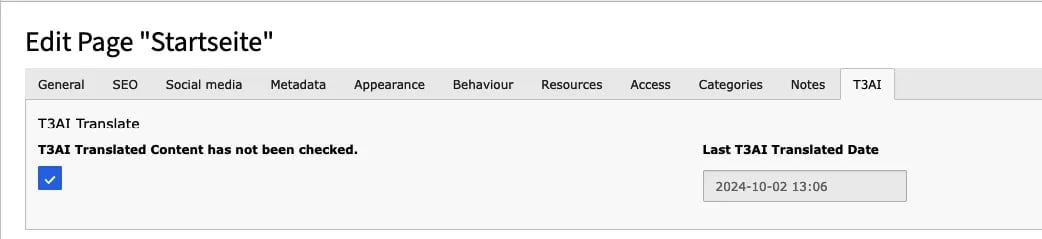
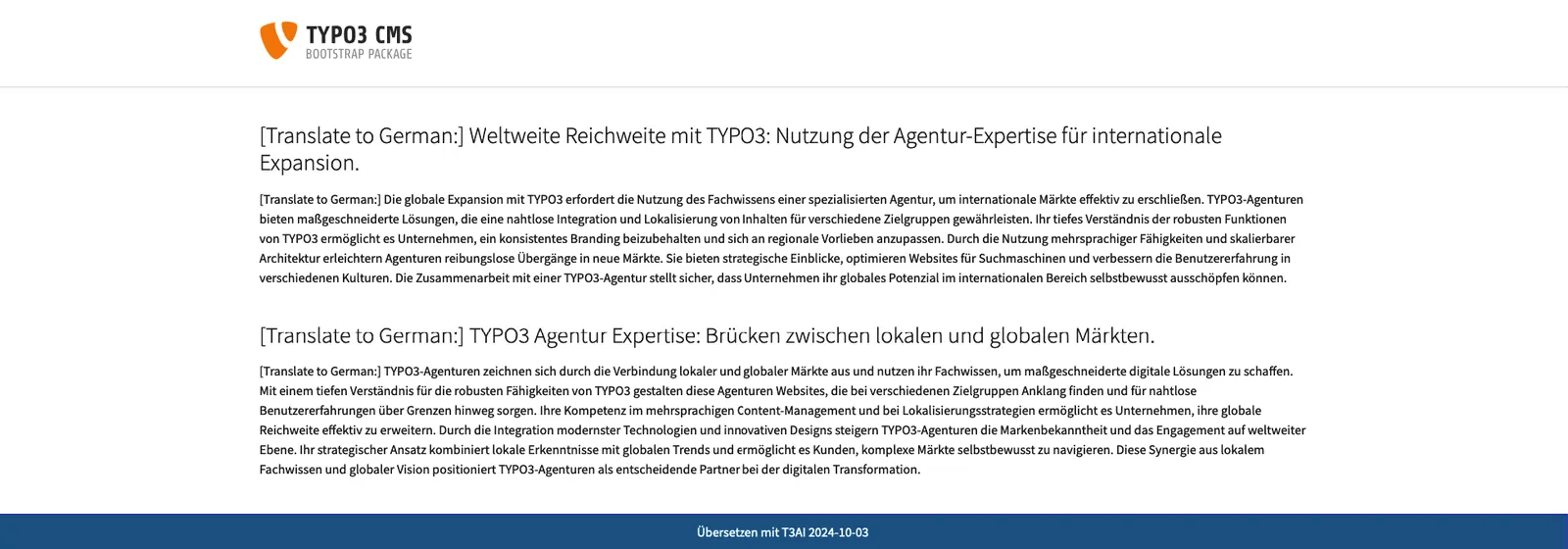
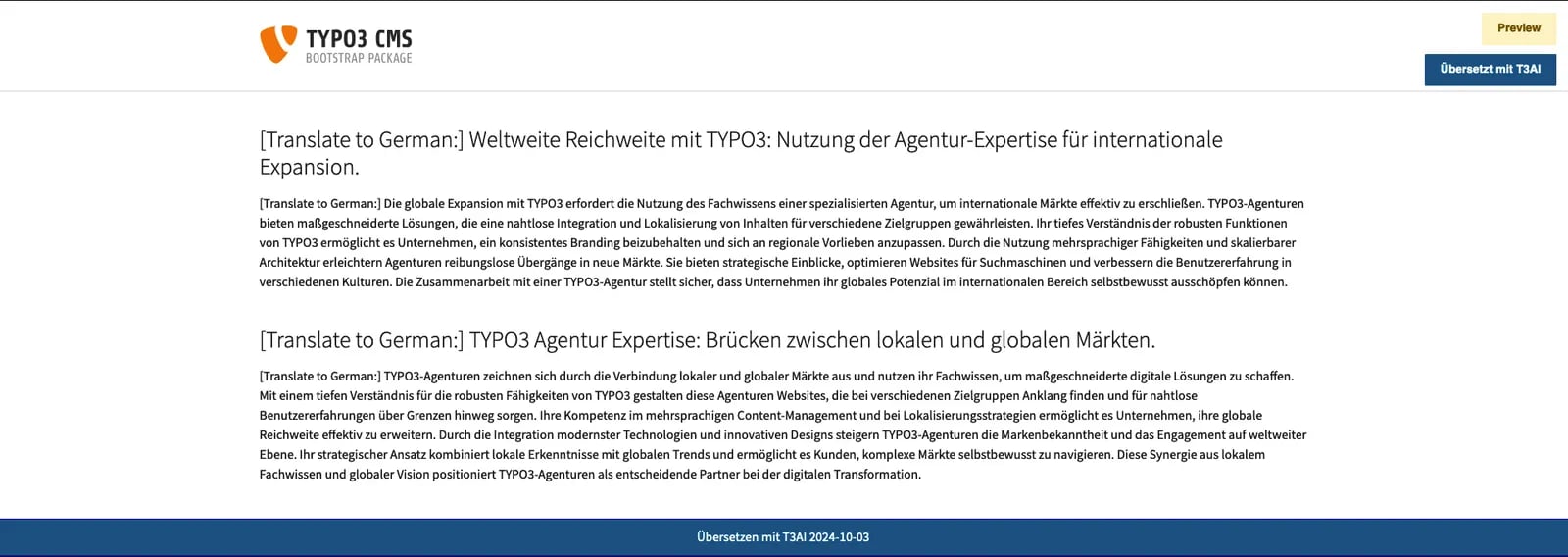
- Enabled: All hidden content elements are automatically activated in every language after translation.
- Disabled: Only those content elements that were active in the main language before translation are activated afterward.
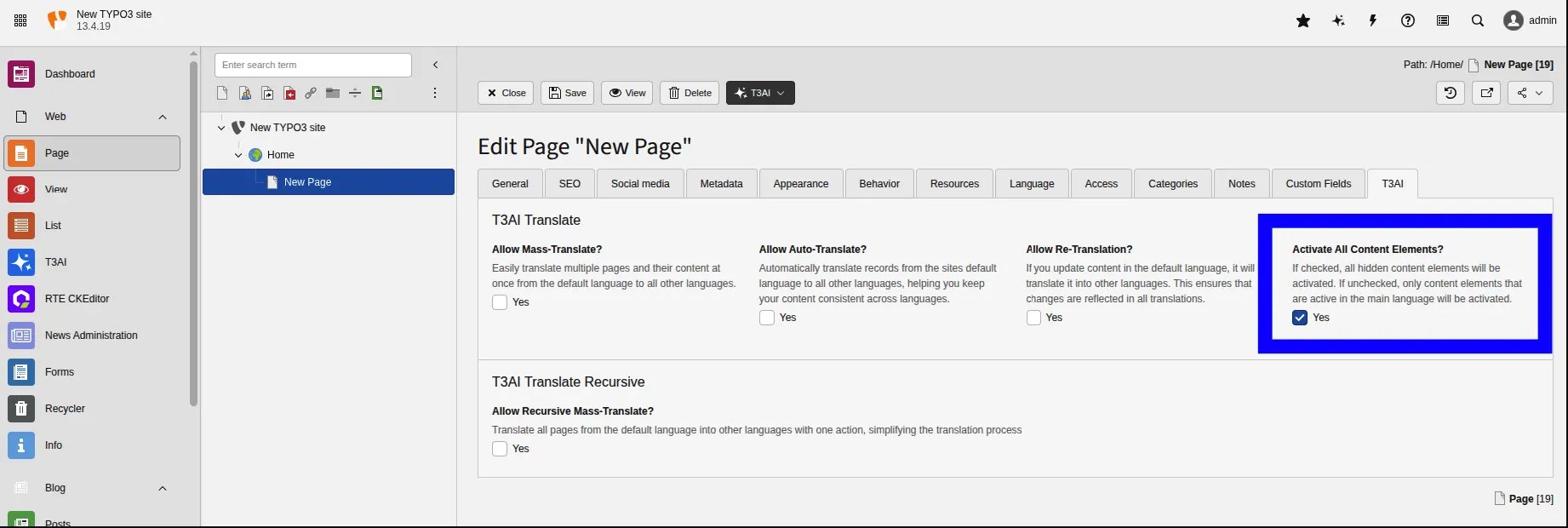
- Open the desired Page in TYPO3.
- Click Edit Page Properties.
- Navigate to the T3AI tab.
- Enable the Activate All Content Elements option.
Auto Activate All Content Elements
After translation, this feature controls how hidden content elements are handled.- Enabled: All hidden content elements are automatically activated in every language after translation.
- Disabled: Only those content elements that were active in the main language before translation are activated afterward.
How to Enable
Follow below steps to enable this feature.- Open the desired Page in TYPO3.
- Click Edit Page Properties.
- Navigate to the T3AI tab.
- Enable the Activate All Content Elements option.